

Screenshots
Generate design-first, marketing-ready screenshots directly inside MDX using the <Screenshot> component — powered by Screenframed.
Overview
The <Screenshot> component turns any URL into a polished, marketing-ready image — complete with device frames, gradient backdrops, drop shadows, perspective tilts, and optional AI-composed headlines. Renders happen server-side, are cached in KV, and served from a CDN, so your docs stay fast.
Screenshots are ideal for:
- Product walkthroughs where you want real page captures, not static PNGs
- Blog hero images and changelog art
- Landing-page-style feature highlights inside your docs
mdx<Screenshot url="https://example.com" preset="docs" />
Every render is cached by a hash of its props. Rebuilding your docs reuses prior renders instead of hitting the API again — only fresh renders count toward your monthly allowance.
Quick Start
Drop a <Screenshot> tag anywhere in your MDX:
mdx<Screenshot url="https://docs.holydocs.com/components" preset="docs" alt="HolyDocs components documentation page"/>
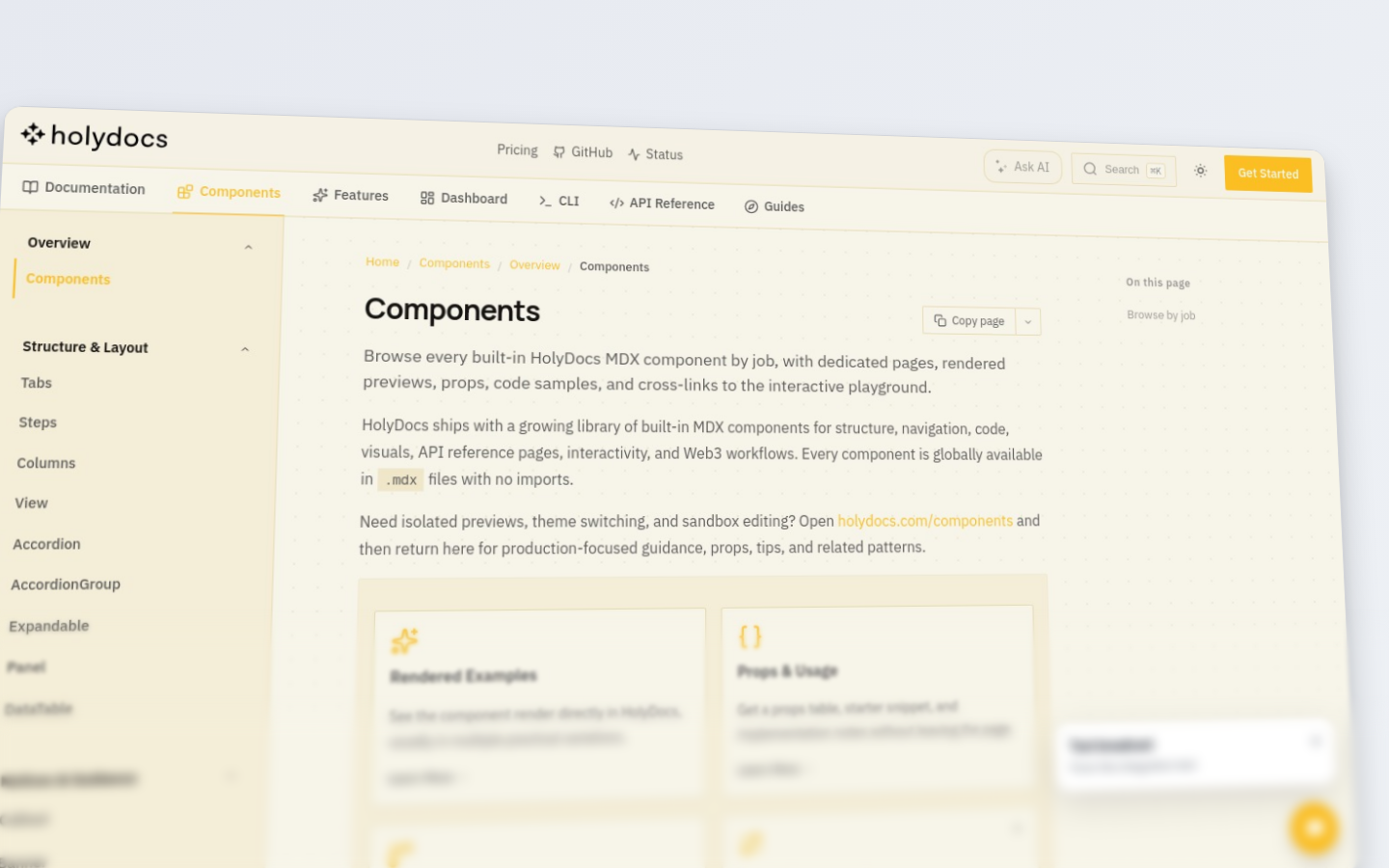
On build, HolyDocs calls Screenframed, caches the result, and replaces the tag with an <img> pointing at the CDN URL. No API keys to manage — the integration is handled centrally. The default preset reads your active HolyDocs theme and chooses a matching Screenframed background, shadow, border, and corner radius.
Props
| Prop | Type | Default | Description |
|---|---|---|---|
url | string | required | The page to capture. |
preset | enum | docs | HolyDocs preset: docs, flat, hero, cinematic, mobile, detail, hero-headline, story-caption, tilted-corner-title, minimal-caption, or raw. Presets set sensible defaults while still allowing every Screenframed parameter to be overridden. |
device | enum | none | Device frame: none, iphone-16-pro, ipad-pro-m4, macbook-pro-16, browser-macos, browser-windows. Omit or pass none for a raw deviceless capture. |
deviceColor | string | — | Frame color variant (e.g. black, silver). |
deviceScale | number | 0.85 | Scale factor for the device inside the composition. |
background | string | theme-matched | Gradient preset (aurora, midnight, etc.) or hosted Screenframed background ref such as ethereal-golden-textures/ethereal-01. Pass none for no treatment. |
backgroundColor | string | — | Solid CSS color override, such as #0B0B0C. |
backgroundGradient | string | — | Raw CSS gradient override. |
backgroundImageUrl | string | — | Custom image URL override. This still works and overrides background. |
padding | number | 80 | Pixels of padding around the framed device. |
cornerRadius | number | 12 | Corner radius of the framed screenshot. |
shadow | enum | none | none, soft, hard, glow, float. |
perspective | enum | none | none, tilt-left, tilt-right, tilt-left-strong, tilt-right-strong, iso-left, iso-right. |
perspectiveIntensity | number | 50 | 0–100 strength of the perspective tilt. |
layout | enum | default | default, bottom-cropped, top-cropped — crop/offset strategy for the captured page. |
depthBlur | number | 0 | 0–30 depth blur intensity. Fades the far edge for a cinematic falloff. |
title | string | — | Optional headline overlay baked into the image. |
titleFont | string | — | Font family for the title overlay (defaults to the API's built-in font). |
titleSize | number | — | Font size in pixels. |
titleColor | string | — | Hex color for the title text. |
textEnabled | boolean | false | Enable a free-form text overlay baked into the image. |
textContent | string | — | Text rendered by Screenframed. |
textX / textY | number | — | Text position as a 0-1 fraction of the output canvas. |
textSize / textWeight | number | — | Typography controls for the text overlay. |
textColor / textGradient | string | — | Solid or gradient fill for the text overlay. |
textShadow | string | — | CSS text shadow for contrast against the background. |
ai | boolean | false | Enable all AI features at once (style, copy, auto-balance). |
aiStyle | boolean | false | Let AI classify the page type and pick a complementary composition. |
aiCopy | boolean | false | Extract a headline + subtitle from the page and render them as overlays. |
autoBalance | boolean | false | Auto-detect dominant colors and pick a matching gradient. |
aspectRatio | enum | auto | auto, 16:9, 4:3, 1:1. |
format | enum | png | png, webp, jpg. |
width | number | — | Output width in pixels. Derived from the chosen device viewport (or 1440 for deviceless captures) unless overridden. |
height | number | — | Output height in pixels. Derived the same way as width. |
dpr | number | 1 | Device pixel ratio. |
waitFor | string | 3000 | Capture trigger: load, networkidle, domcontentloaded, or a millisecond delay. Defaults to waiting 3 seconds after navigation. |
block | string | — | Comma-separated block list: cookie-banners, ads, chat-widgets, popups. |
injectCss | string | — | Inline CSS to inject before capture. |
params / payload | JSON string | — | Escape hatch for full Screenframed payload overrides, including nested output values. |
alt | string | — | Alt text for the output <img>. Falls back to title then url. |
Examples
Theme-Matched Docs Preset
Use the default docs preset when the screenshot should feel native to the active HolyDocs theme:
mdx<Screenshot url="https://docs.holydocs.com/components" preset="docs" alt="HolyDocs components documentation page"/>
Hero Preset
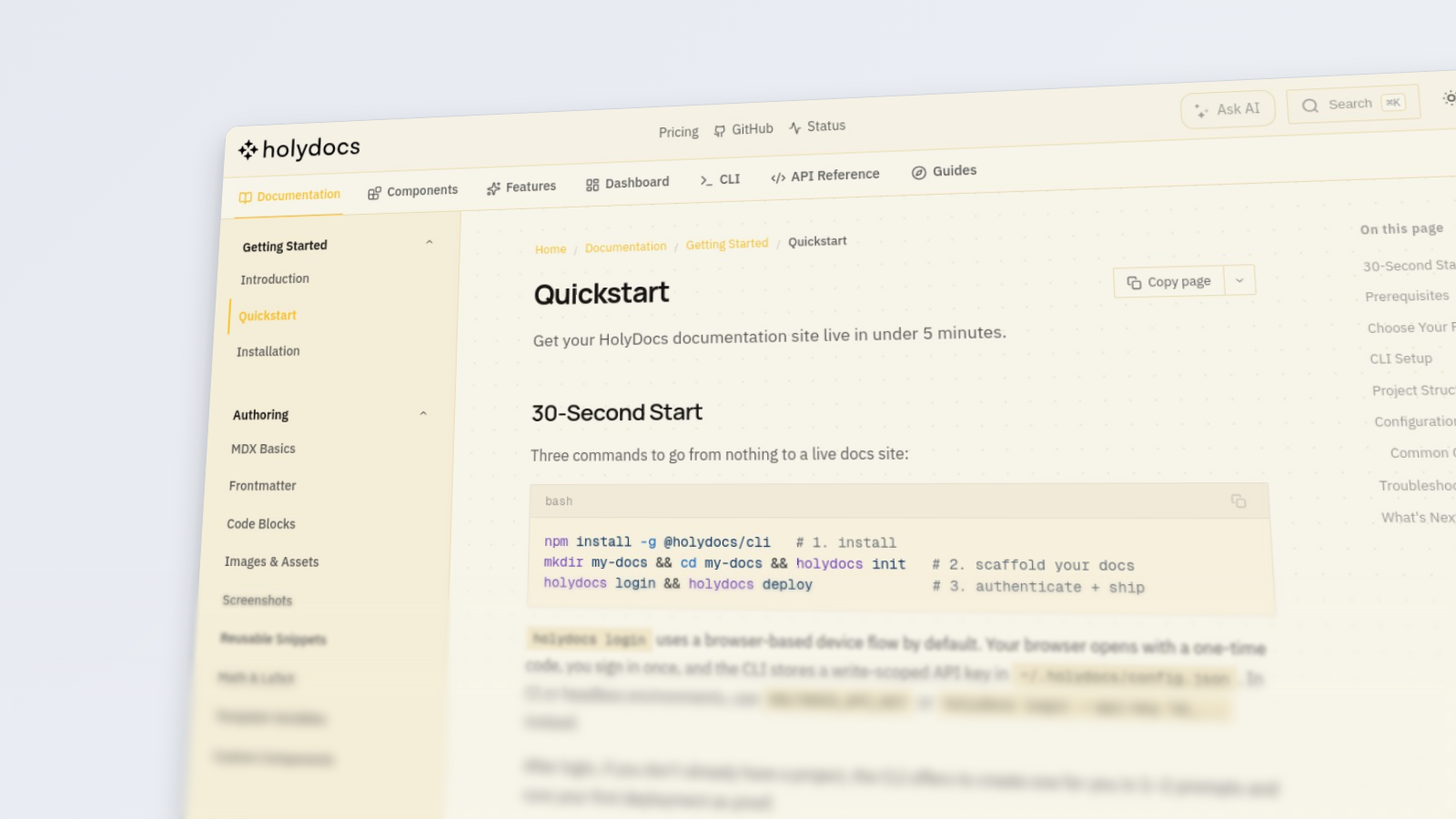
Use hero for a more dimensional product screenshot:
mdx<Screenshot url="https://docs.holydocs.com/quickstart" preset="hero" alt="HolyDocs quickstart rendered with the hero preset"/>
Mobile Product View
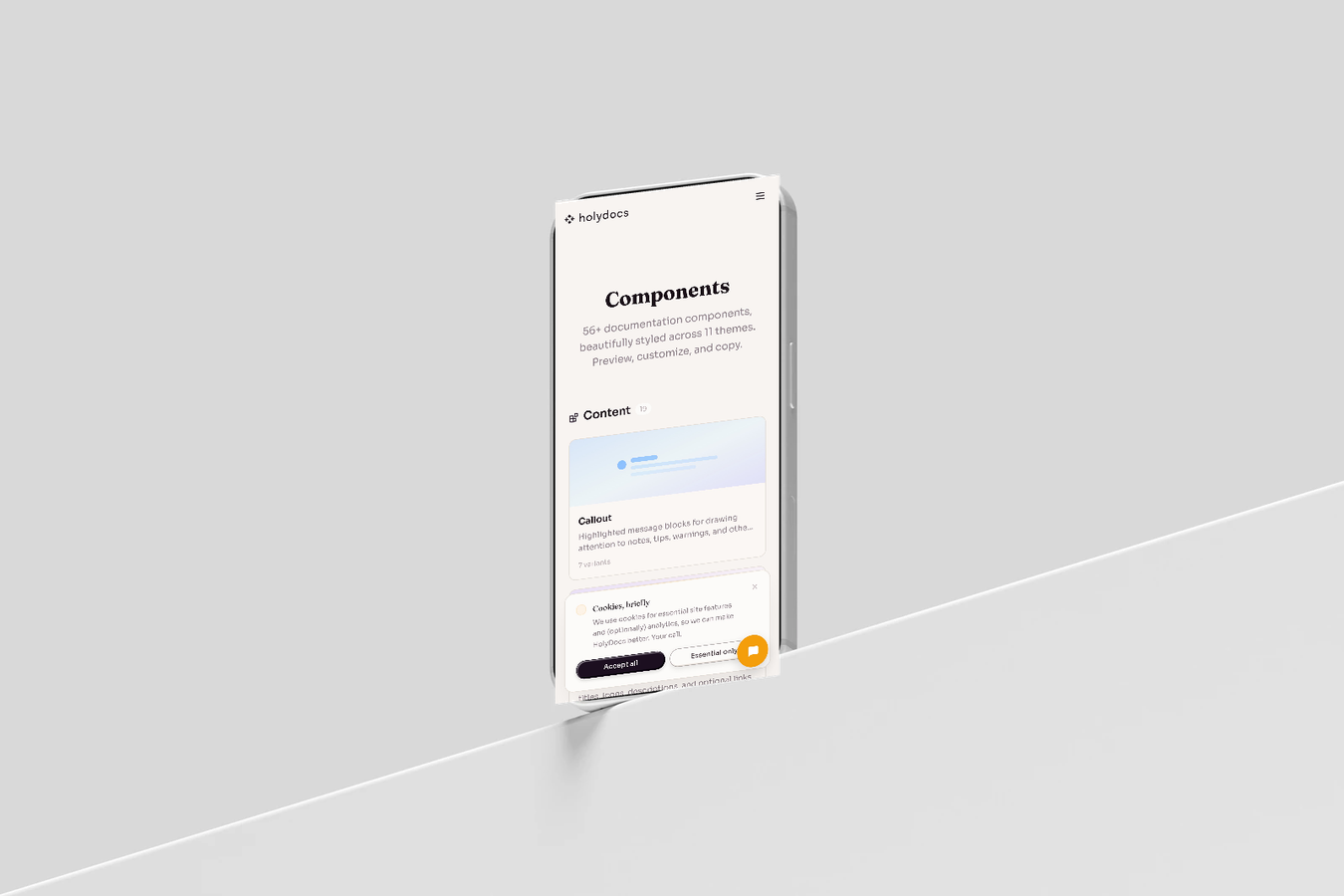
The mobile preset uses an iPhone frame and a compact output shape:
mdx<Screenshot url="https://holydocs.com/components" preset="mobile" alt="HolyDocs components page on mobile"/>
Detail Preset
Use detail when the page should feel closer and more cropped:
mdx<Screenshot url="https://docs.holydocs.com/api-playground" preset="detail" alt="HolyDocs API playground detail crop"/>
Story Caption Preset
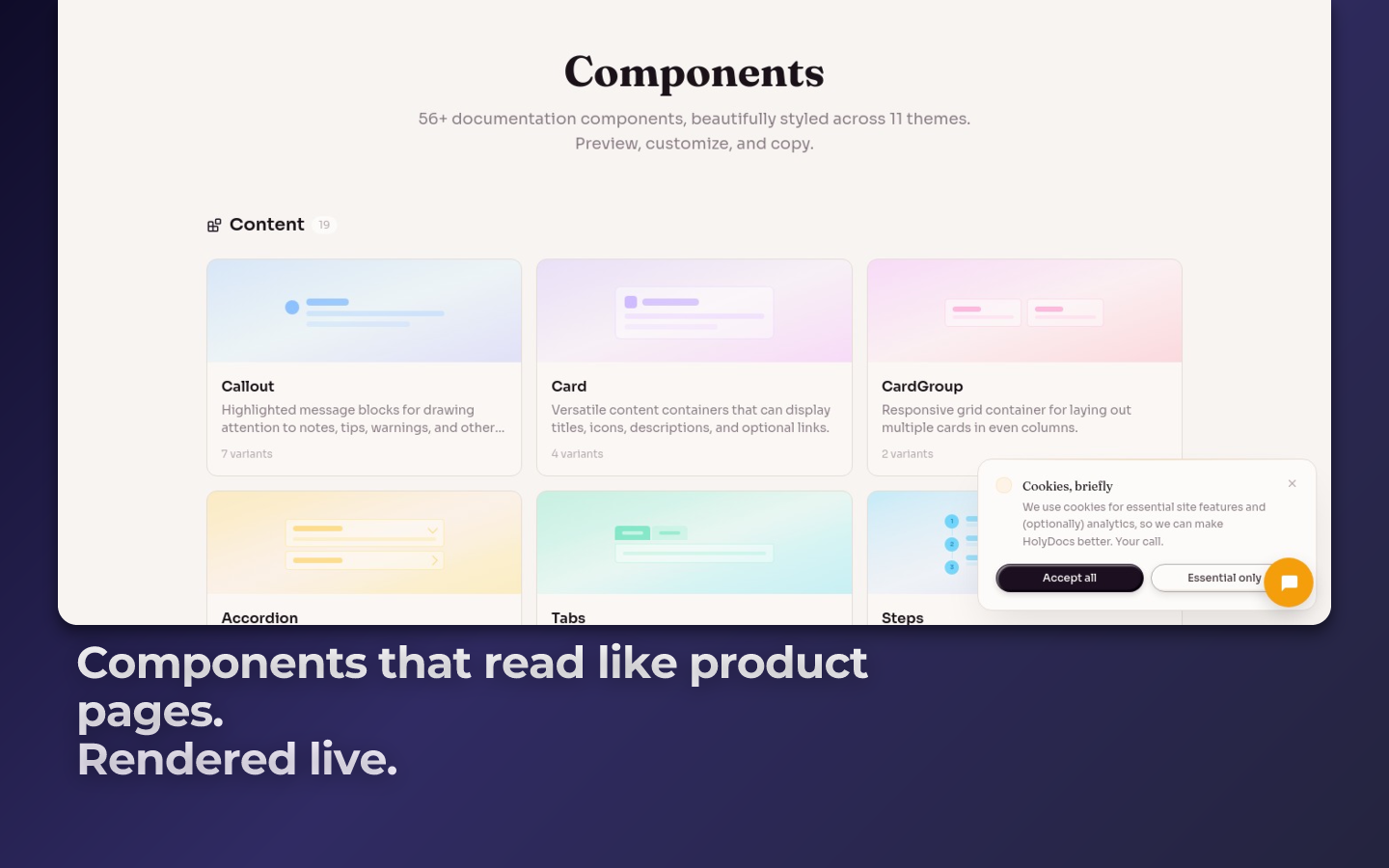
Several presets include Screenframed text composition defaults. Use story-caption when the screenshot needs a baked-in caption without writing text props:
mdx<Screenshot url="https://holydocs.com/components" preset="story-caption" alt="HolyDocs components screenshot with the story caption preset"/>
Minimal Caption Preset
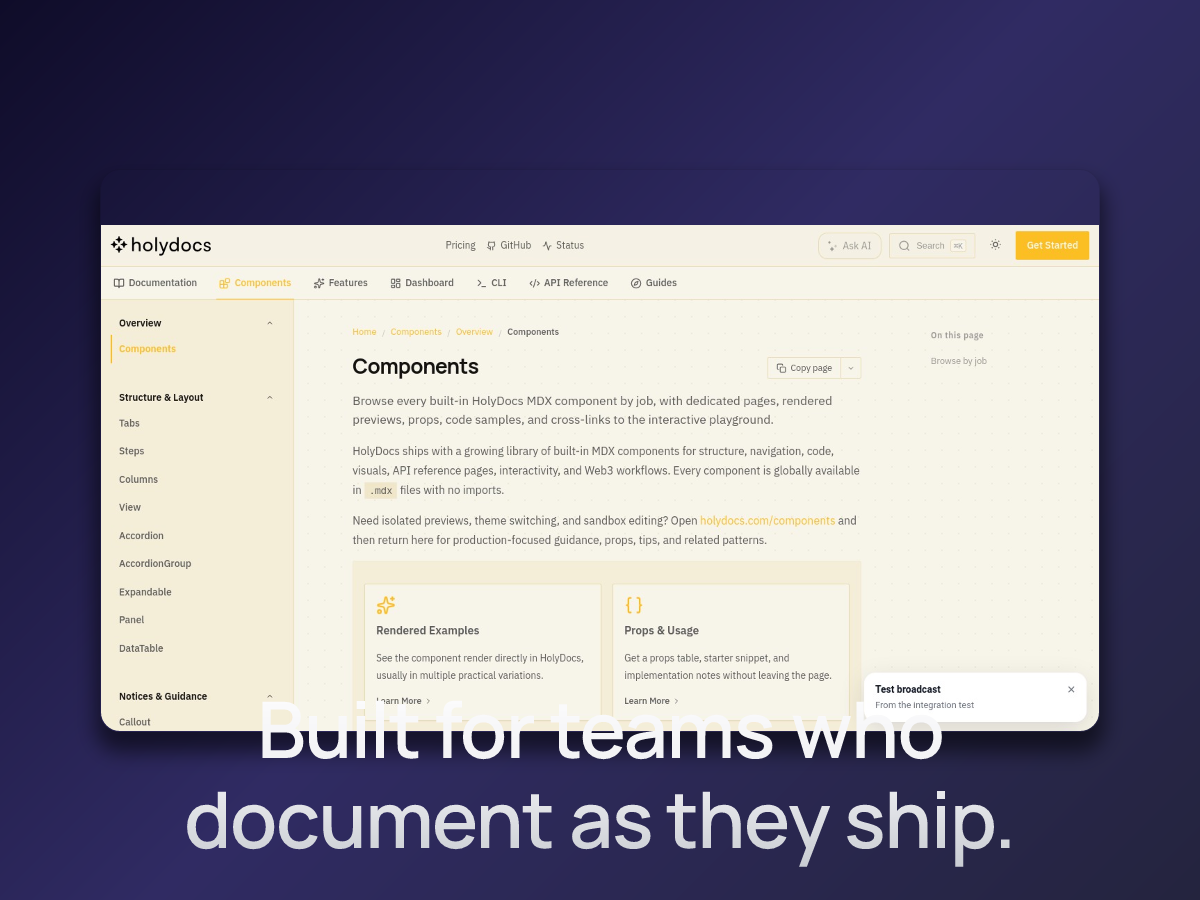
Use minimal-caption for a flatter framed capture with a bottom caption baked into the image:
mdx<Screenshot url="https://docs.holydocs.com/components" preset="minimal-caption" alt="HolyDocs components screenshot with the minimal caption preset"/>
Cinematic Preset
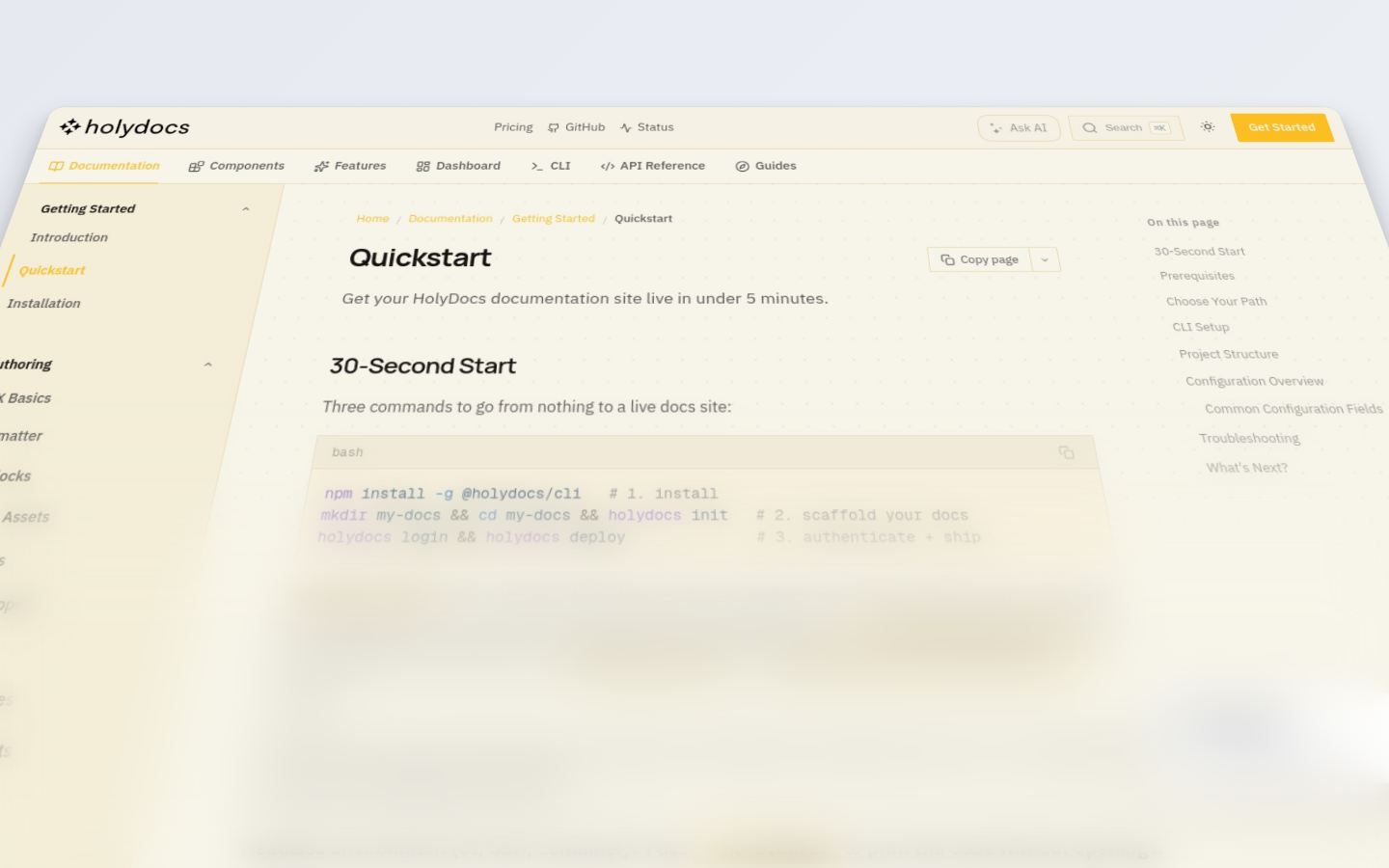
Use cinematic for a strong perspective view with depth blur:
mdx<Screenshot url="https://docs.holydocs.com/quickstart" preset="cinematic" alt="HolyDocs quickstart rendered with the cinematic preset"/>
Raw Capture
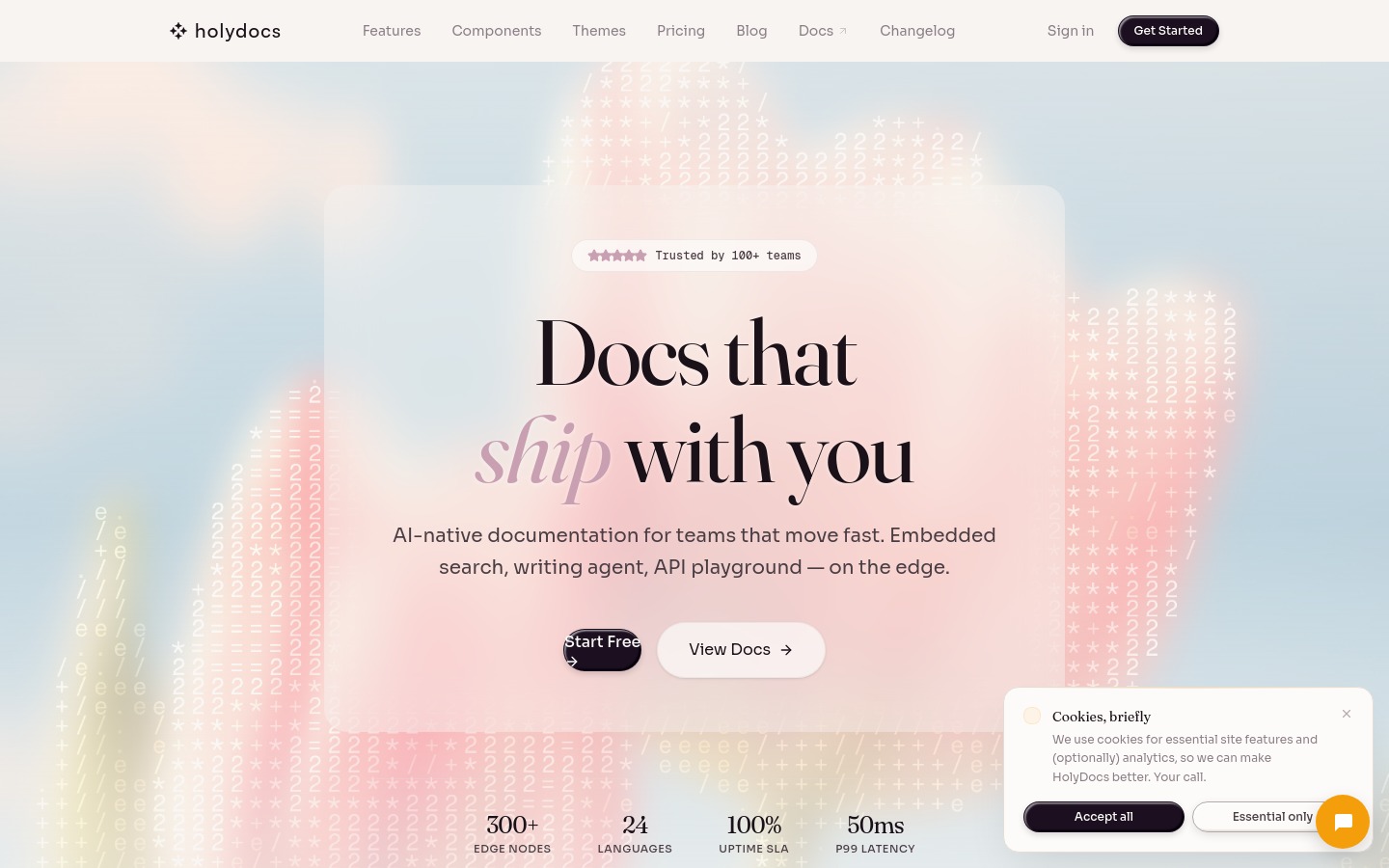
Use raw when you want a plain captured page with no visual treatment:
mdx<Screenshot url="https://holydocs.com" preset="raw" alt="Raw HolyDocs home page"/>
Caching
Every <Screenshot> render is fingerprinted by a SHA-256 hash of its canonical props (recursive, key-sorted). That hash is the KV cache key.
- Cache hit — returns the prior CDN URL instantly; does not consume your plan allowance.
- Cache miss — calls the Screenframed API, stores the result for 30 days, and increments your monthly counter.
This means rebuilding your docs after fixing a typo won't re-render any screenshots. Only genuinely new or changed captures count toward your quota.
Changing any prop — even whitespace inside a title — produces a new cache entry. Keep props stable if you want cache hits.
Background Catalog
Screenframed exposes available built-in backgrounds at:
bashcurl "https://screenframed.com/v1/backgrounds?limit=20&theme=dark"curl "https://screenframed.com/v1/backgrounds/packs"
The response includes built-in gradient presets, image backgrounds, CSS backgrounds, tags, thumbnails, and ready-to-use Screenframed parameter snippets such as background or background_gradient.
Plan Limits
Fresh renders (cache misses) count against a monthly allowance per your plan:
| Plan | Screenshot renders / month |
|---|---|
| Free | 25 |
| Starter | 250 |
| Pro | 1,500 |
| Business | 8,000 |
| Enterprise | Unlimited |
When you exceed the limit, <Screenshot> falls back to an inline placeholder image with an "upgrade" notice. Your build never fails — the rest of the page renders normally.
Usage is visible on Settings → Billing under the "Screenshots" usage bar. The counter resets at the start of each calendar month.
Render Failures
If the Screenframed API call fails (network error, invalid URL, unreachable page), the component emits a placeholder and logs a warning to your build output. The reserved quota slot is automatically released so failed renders don't count against you.
See Also
- Images & Assets — static images and the
/_assets/pipeline - Components — complete component reference
- Plans & Pricing — full plan limit breakdown