

Carousel
Embla-style carousel for screenshots, product tours, quotes, and gallery cards with optional autoplay.
For isolated previews, theme switching, and sandbox editing, open the Carousel playground on holydocs.com .
When to use
Use this component when the reader benefits from an active surface such as a form, quiz, chart, or draggable visual.
Live Examples
Every example below renders the real component directly inside HolyDocs, followed by the exact MDX you can paste into a page.
Product Tour
Three-slide screenshot carousel with captions.
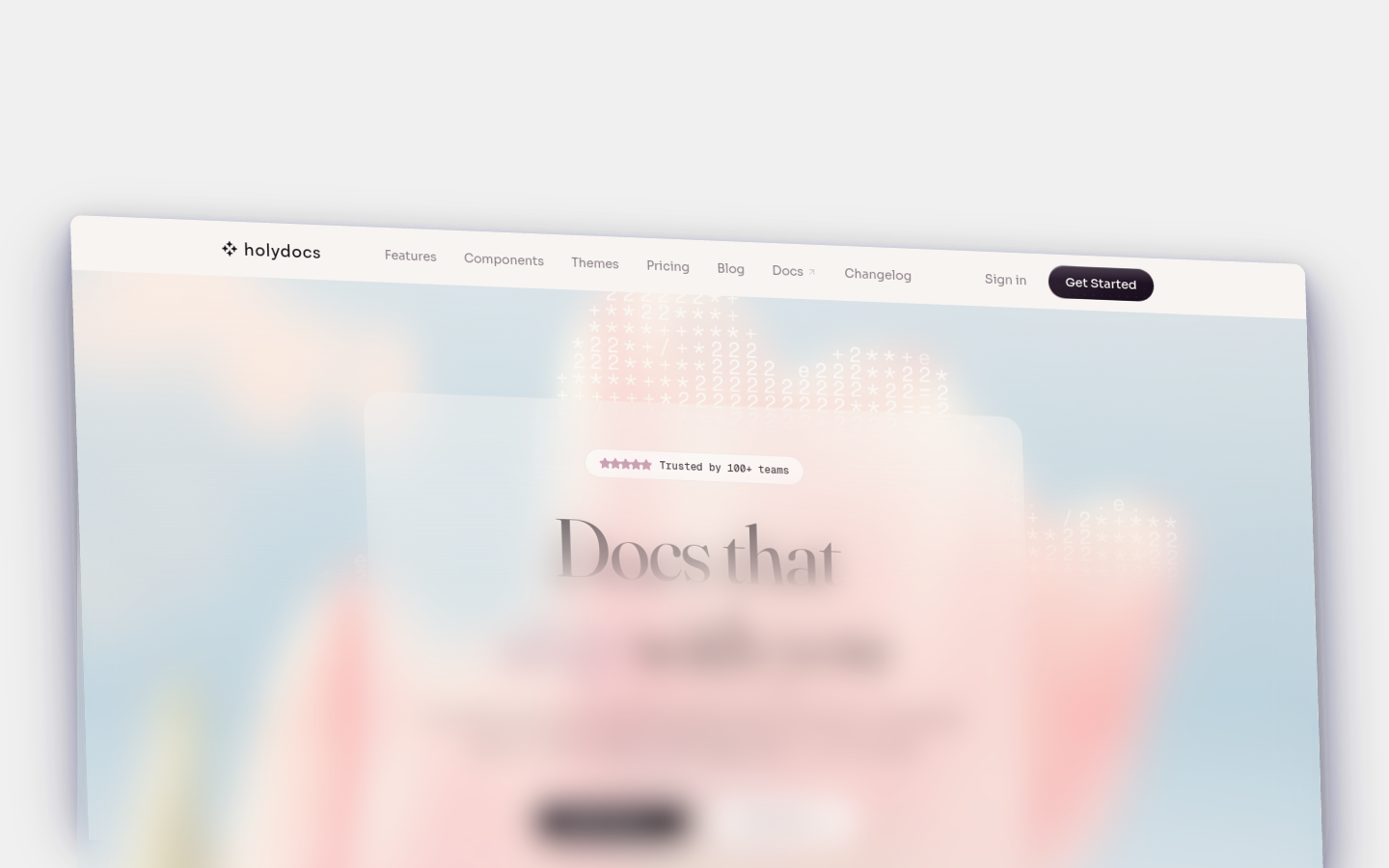
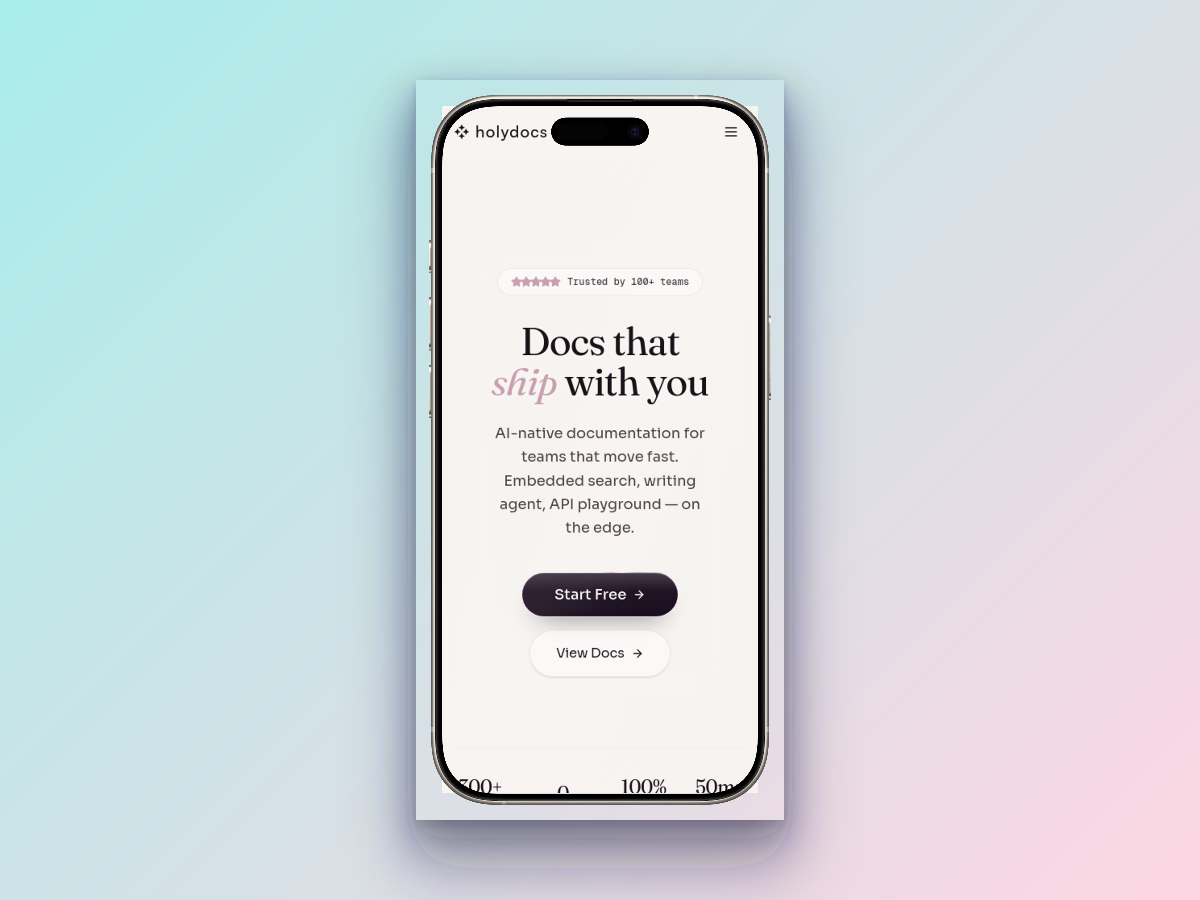
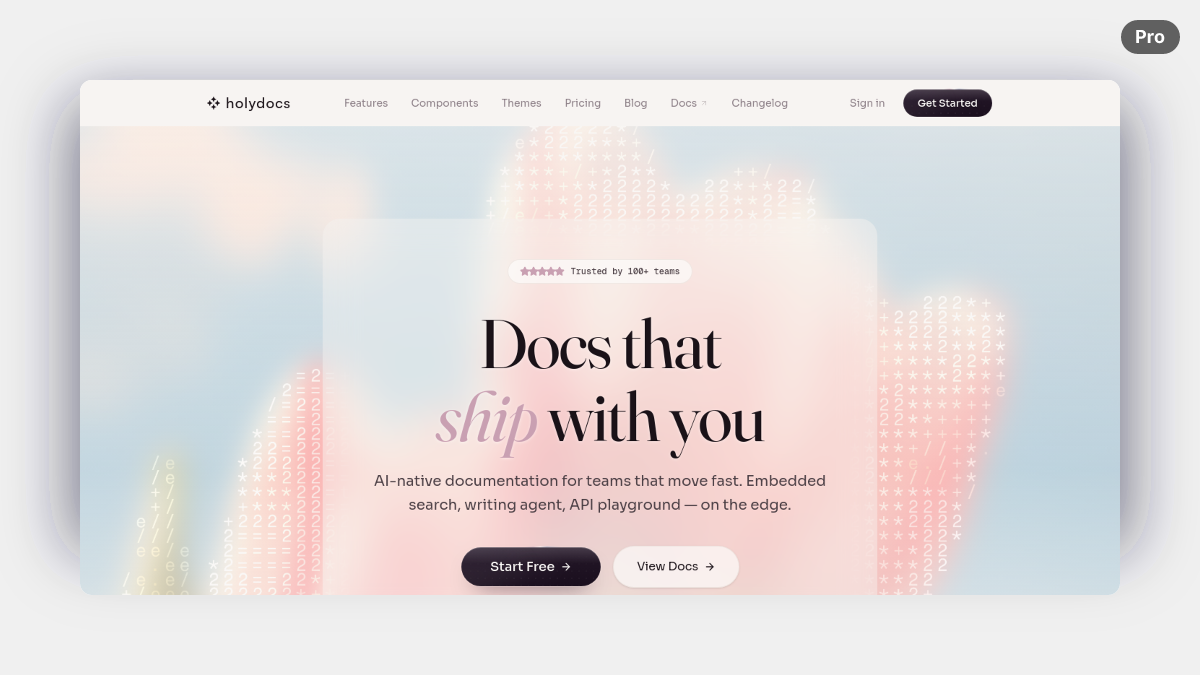
mdx<Carousel autoplay interval={4200}> <CarouselItem title="Landing page" caption="Hero content, search, and project setup in a single pass."> <img src="https://cdn.screenframed.com/r/ren_01KP63F5MD99TKH0DQZQRH30JQ.png" alt="HolyDocs landing page screenshot" width="1440" height="900" loading="lazy" /> </CarouselItem> <CarouselItem title="Device mockup" caption="Marketing-friendly framing for release notes and launch content."> <img src="https://cdn.screenframed.com/r/ren_01KP61F5YWDVB3FV83N7PS41P0.png" alt="HolyDocs screenshot inside a device frame" width="1200" height="900" loading="lazy" /> </CarouselItem> <CarouselItem title="AI composition" caption="Automated screenshot treatments for docs and changelog announcements."> <img src="https://cdn.screenframed.com/r/ren_01KP61GS6GTFAX7P2QGZ4R6K2G.png" alt="HolyDocs screenshot with AI composition" width="1200" height="675" loading="lazy" /> </CarouselItem></Carousel>
Props
| Prop | Type | Default | Description |
|---|---|---|---|
autoplay | boolean | false | Automatically advances through slides. |
interval | number | 4500 | Autoplay interval in milliseconds. |
Usage
Start from this baseline shape and then tailor the copy, data, or nesting to the page you are writing.
mdx<Carousel autoplay interval={4200}> <CarouselItem title="Landing page" caption="Hero content, search, and project setup in a single pass."> <img src="https://cdn.screenframed.com/r/ren_01KP63F5MD99TKH0DQZQRH30JQ.png" alt="HolyDocs landing page screenshot" width="1440" height="900" loading="lazy" /> </CarouselItem> <CarouselItem title="Device mockup" caption="Marketing-friendly framing for release notes and launch content."> <img src="https://cdn.screenframed.com/r/ren_01KP61F5YWDVB3FV83N7PS41P0.png" alt="HolyDocs screenshot inside a device frame" width="1200" height="900" loading="lazy" /> </CarouselItem> <CarouselItem title="AI composition" caption="Automated screenshot treatments for docs and changelog announcements."> <img src="https://cdn.screenframed.com/r/ren_01KP61GS6GTFAX7P2QGZ4R6K2G.png" alt="HolyDocs screenshot with AI composition" width="1200" height="675" loading="lazy" /> </CarouselItem></Carousel>
Tips
- Explain what changes when a reader interacts with the component. Motion or controls alone should not carry the full meaning.
- Keep a non-interactive fallback in mind for screenshots, exported docs, and AI-driven readers that only see the resulting HTML.
- Verify keyboard behavior and focus states whenever the component includes inputs, toggles, or draggable controls.
Related Components
More
- Interactive playground: Carousel on holydocs.com
- Component library index: /components